Resources · Guide
Making the most of the resources
An illustrated tour of the library: find an article, filter by domain, follow a module-based path and move between dedicated pages.
How the library is organised
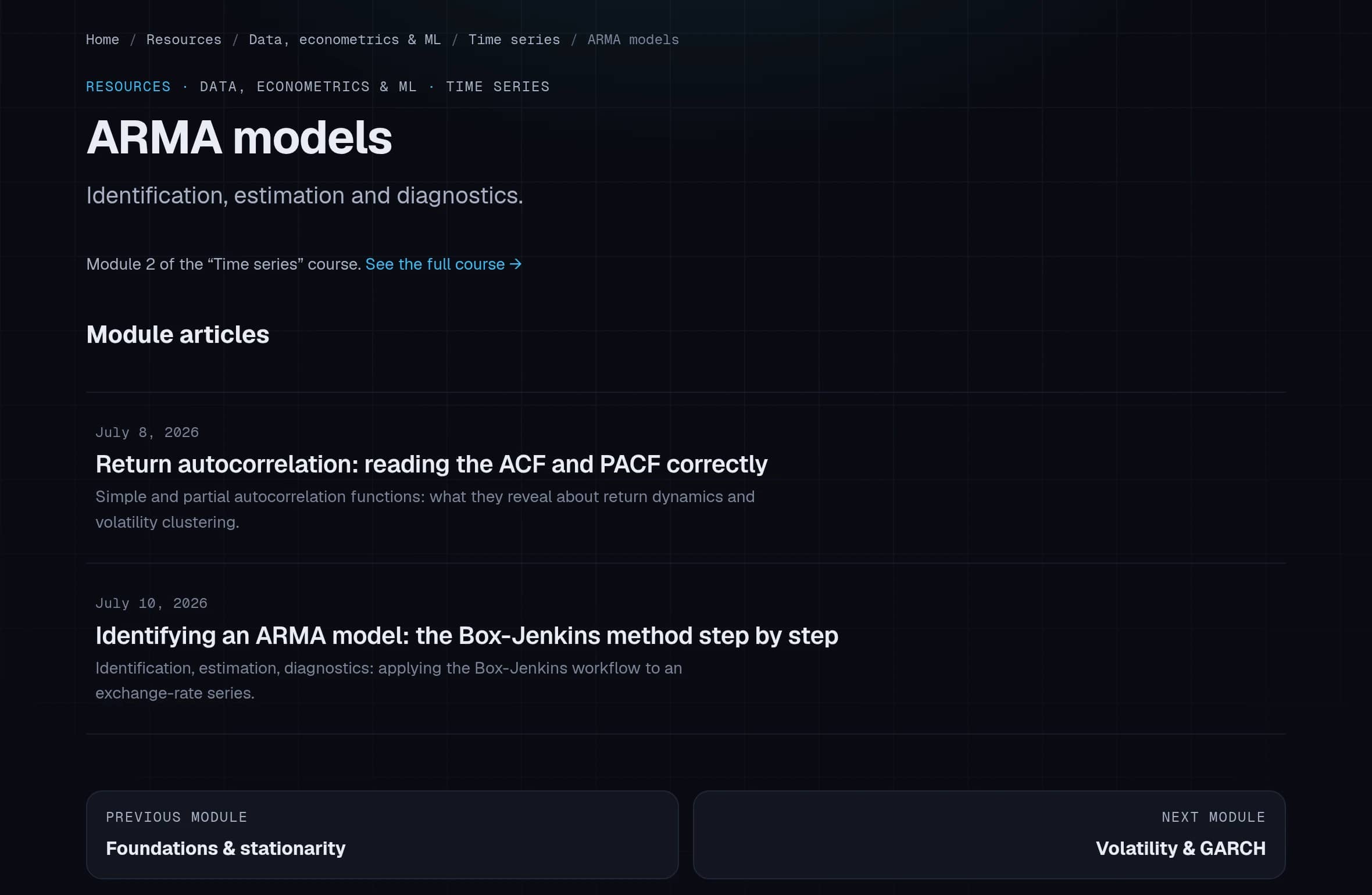
Every article sits in a category (the domain), is refined by a subcategory and, when that subcategory forms a course, belongs to a numbered module. The filters on the Resources page follow this exact hierarchy — the example below matches the guide’s screenshots.
- CategoryData, econometrics & ML
- SubcategoryTime series3 modules
- Module 1Foundations & stationarity
- ArticleStationarity: ADF and KPSS tests in practice
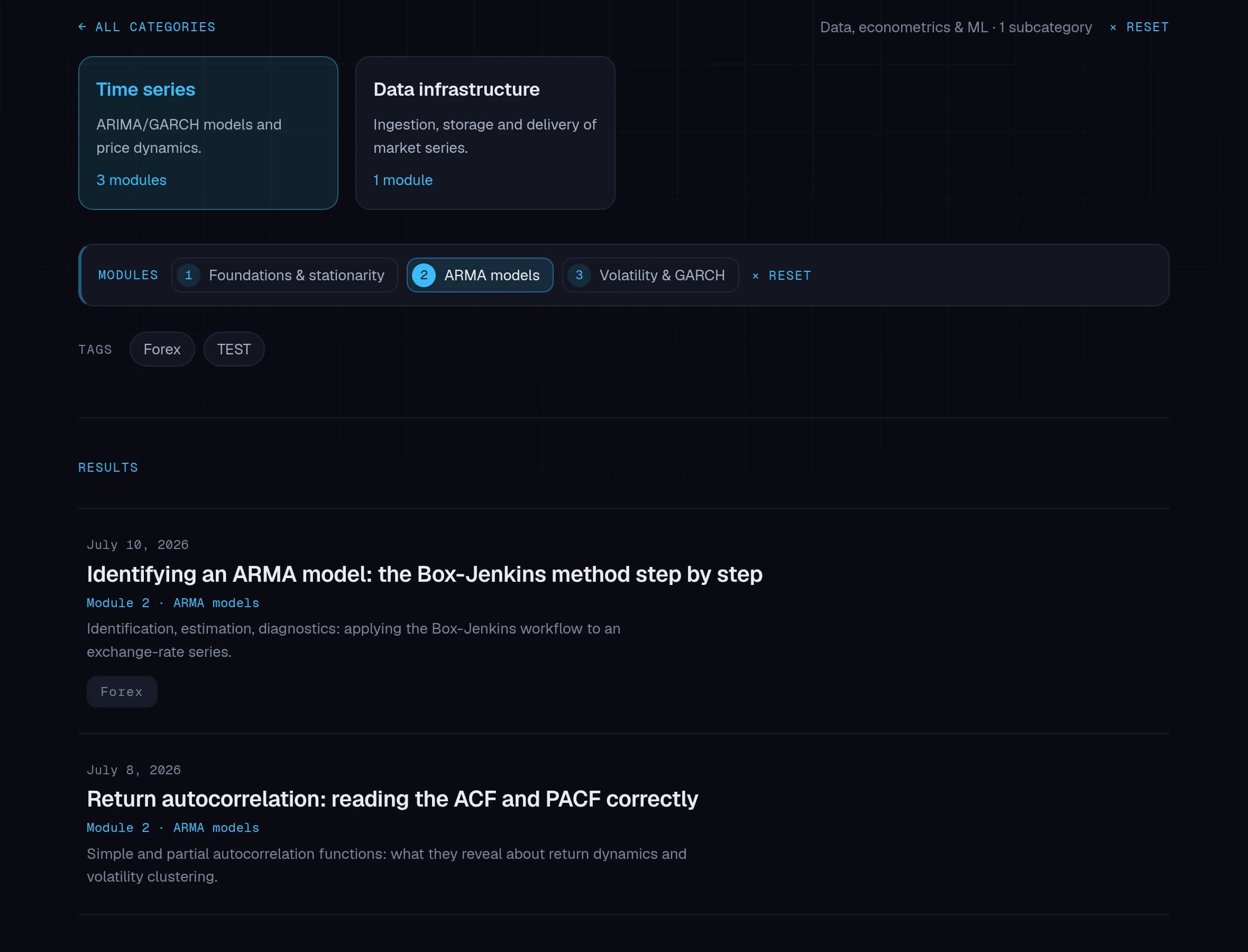
- Module 2ARMA models
- ArticleAutocorrelation: reading the ACF and PACF
- ArticleThe Box-Jenkins method step by step
- Module 3Volatility & GARCH
- ArticleGARCH(1,1): estimating conditional volatility
- Module 1Foundations & stationarity
- SubcategoryData infrastructure1 module
- SubcategoryTime series3 modules
The catalogue at a glance
The Resources page gathers every article and publication. At the top, the search field; in the middle, the market finance domains; below, the latest published articles, browsable page by page. Each domain card is both a filter and a link to a dedicated page.
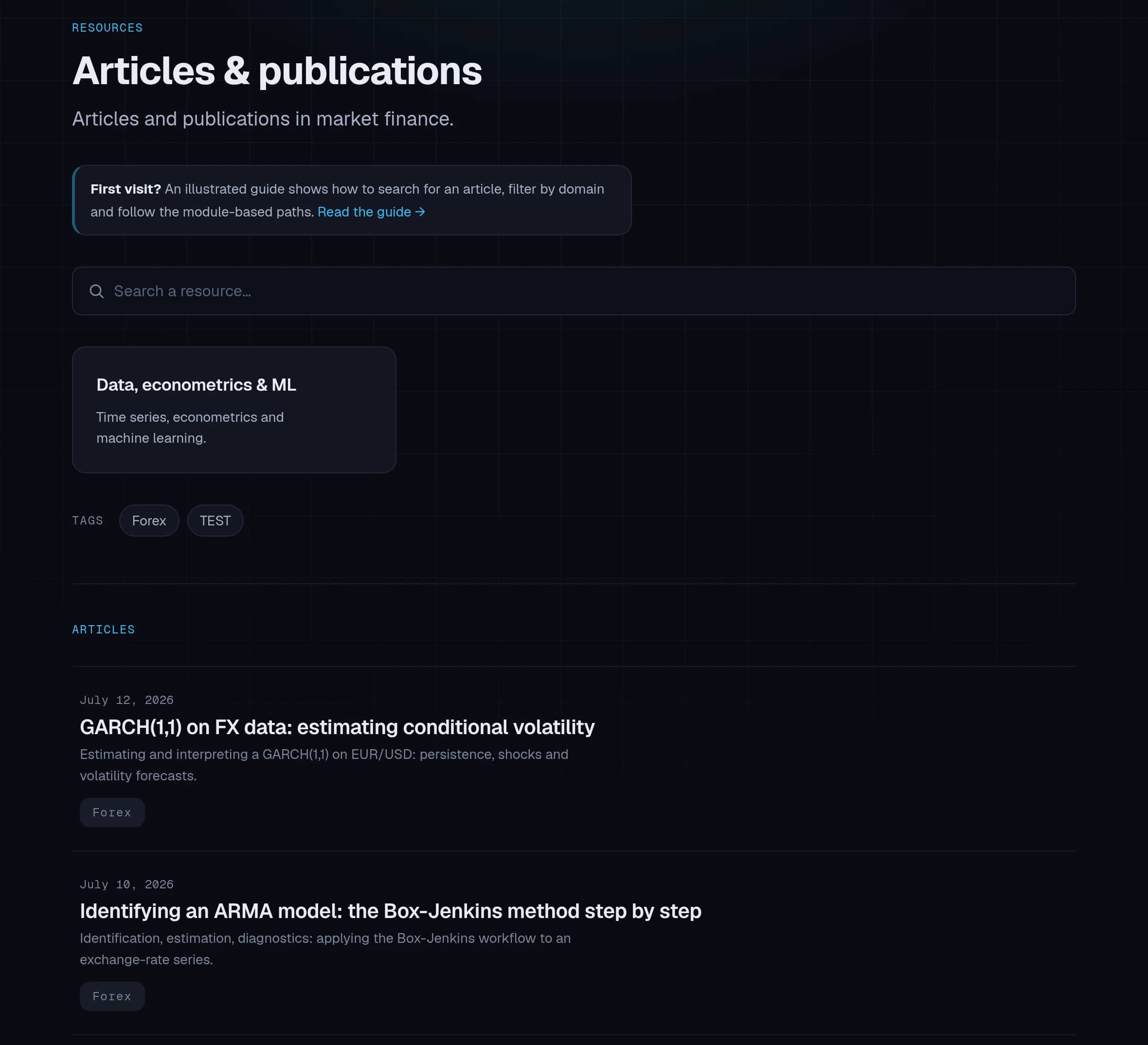
Search for an article
Type a term — “volatility”, “order book”, “GARCH”… — and the list updates as you type, searching article titles, descriptions and body text, most relevant first. The “Search in” selector narrows the search to titles or content when needed, and a highlighted excerpt shows the matching passage. Search combines with active filters: a selected domain or tag narrows the results accordingly.
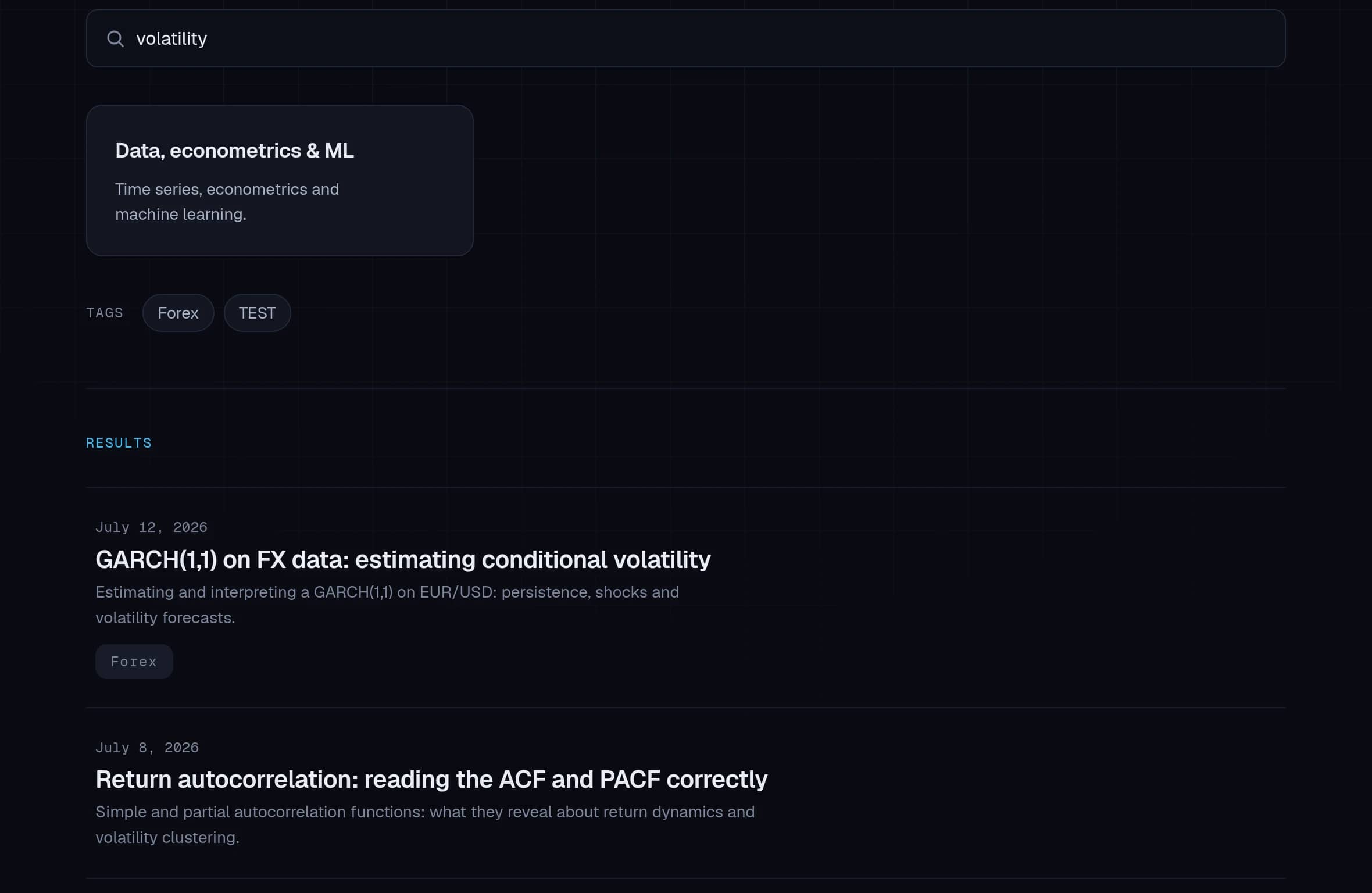
Filter by domain, refine by subcategory
Click a domain to filter the list and reveal its subcategories; click a subcategory to refine further. “All categories” takes you back to the start. Every label is defined in the glossary, which details the scope covered by each topic.
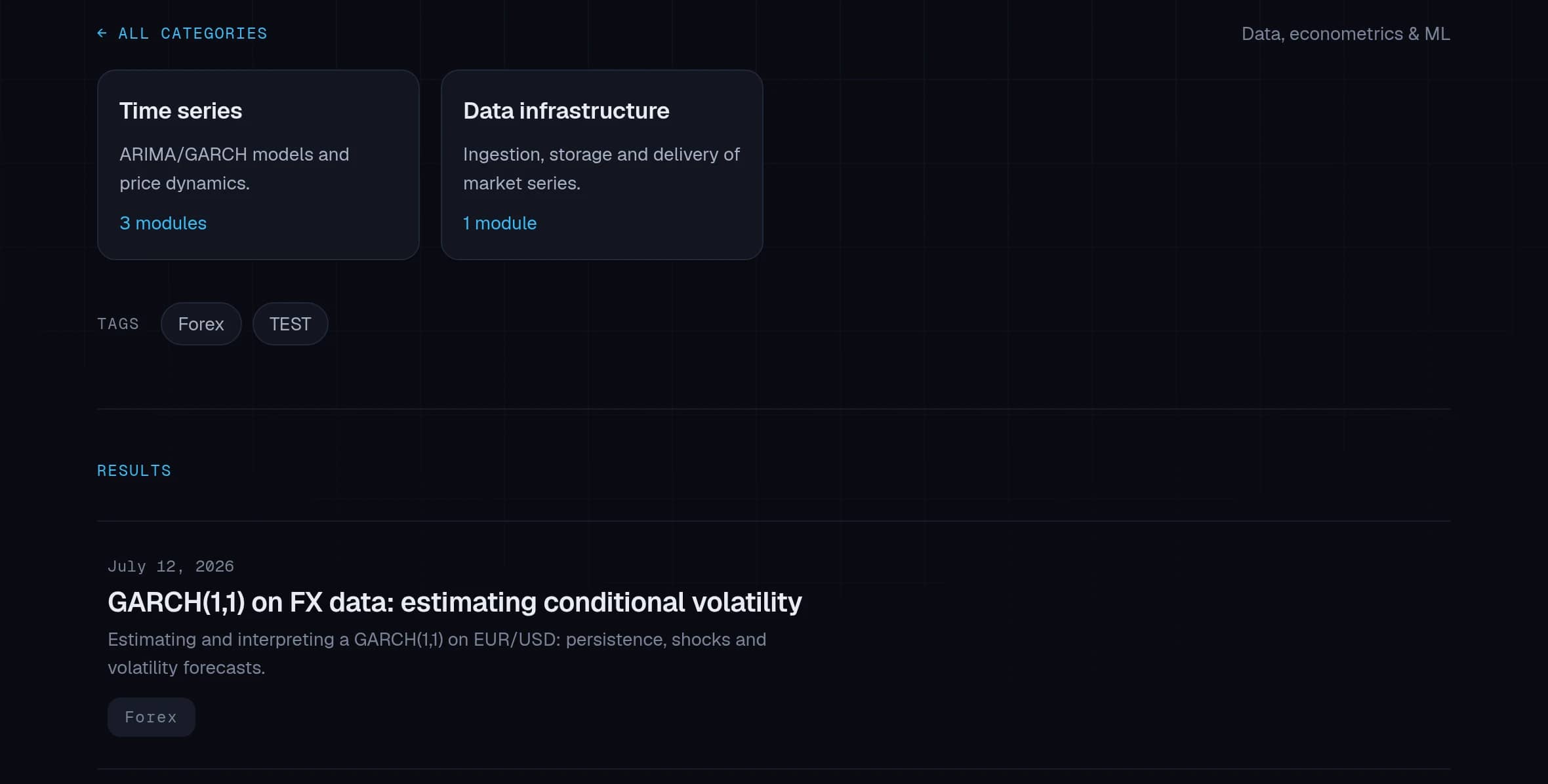
Follow a module-based path
Some subcategories organise their articles as a course: numbered modules, meant to be read in order. Select a subcategory to reveal its steps, then click a module to show only its articles — each result then carries a “Module N” badge.
Cross-filter with tags
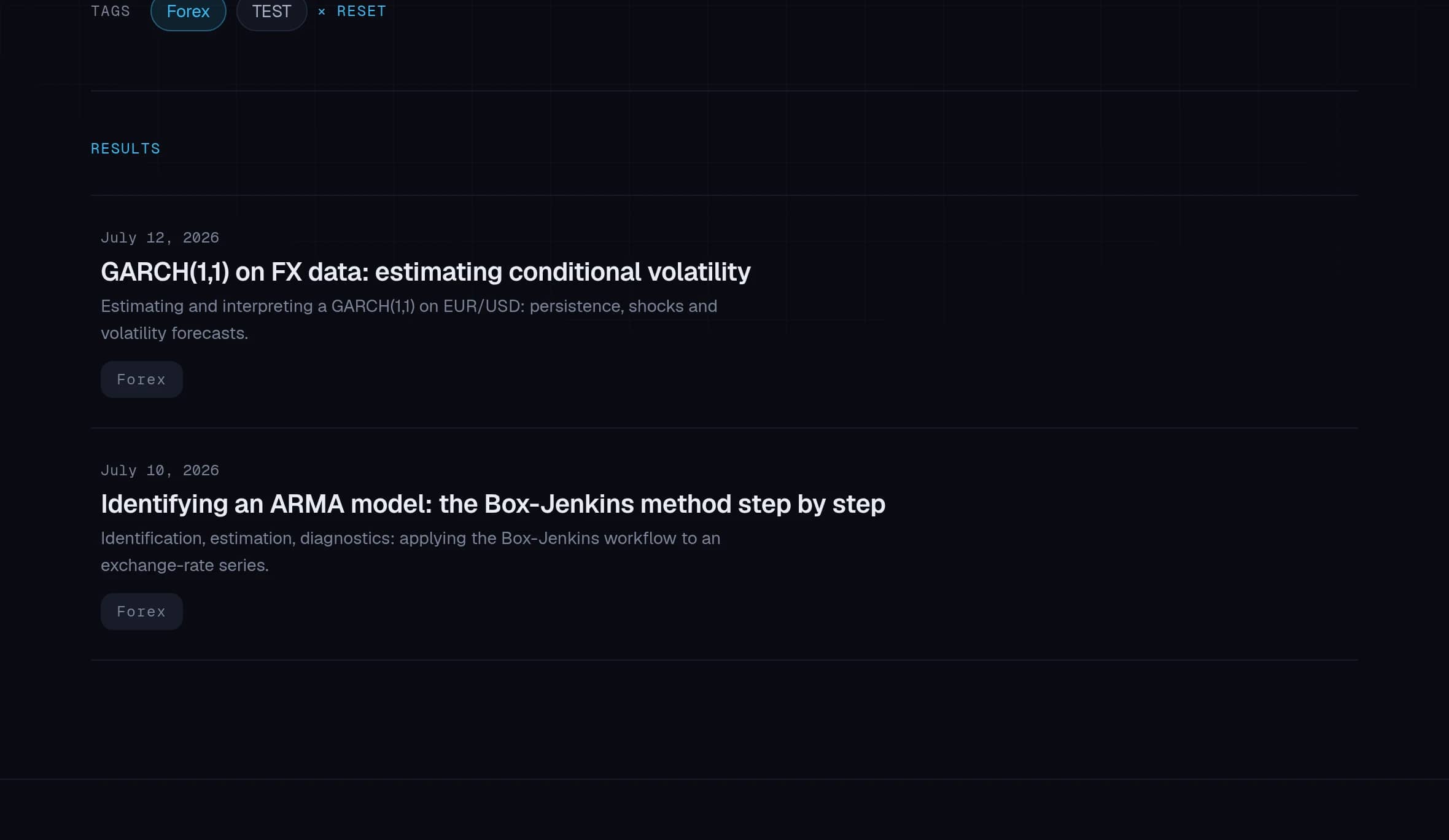
Tags cut across domains (a method, a tool, a market…). One click activates a tag, a second clears it; it combines with search and domain filters for precise targeting.
Open the dedicated pages
Every domain, subcategory, module and tag has a page of its own: Ctrl/⌘ + click a card to open it in a new tab. There you will find the breadcrumb trail, the full list of articles and, for modules, the course’s previous/next navigation. Filters also live in the URL: copy it to share or restore an exact view.